Upgrade Windows 11 Home to Windows 11 Pro
This article describes how to update your device from Windows 11 Home to Windows 11 Pro. Upgrading Windows 11 Home edition to Pro edition involves few steps.

To upgrade from Windows 11 Home to Windows 11 Pro, check your current edition and activation status.
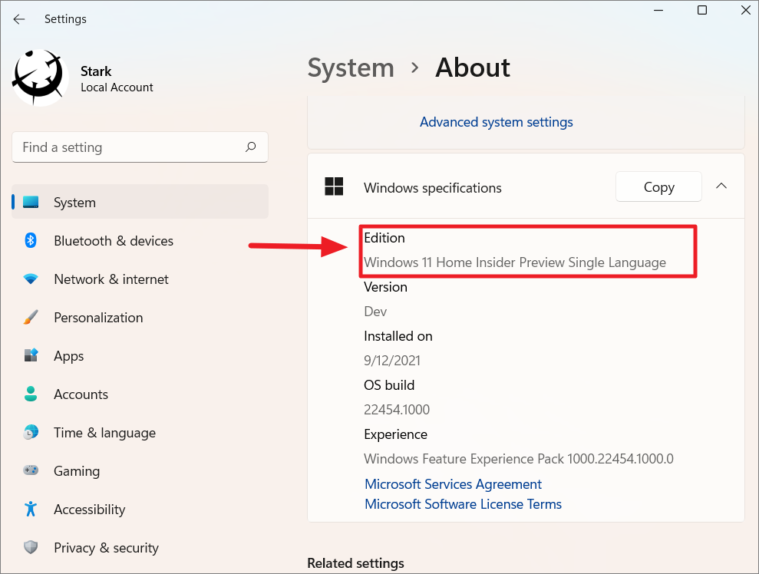
To Start Upgrade, Go to Settings > System > Activation.
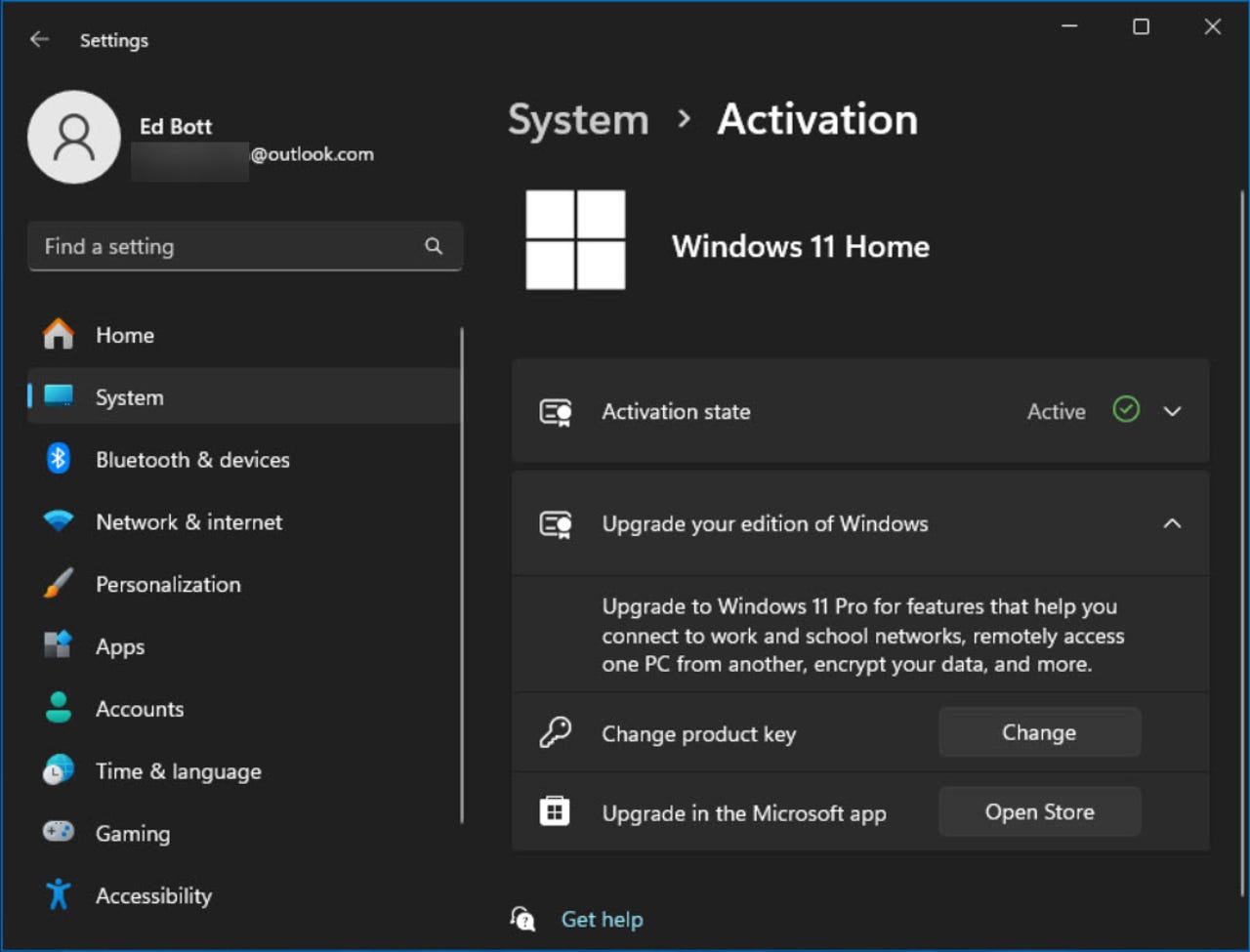
To upgrade, Select Change product key, and then enter the 25-character Windows 11 Pro product key.
You will see a series of progress windows before your machine restarts. After the upgrade is completed, you should receive a Success notification.
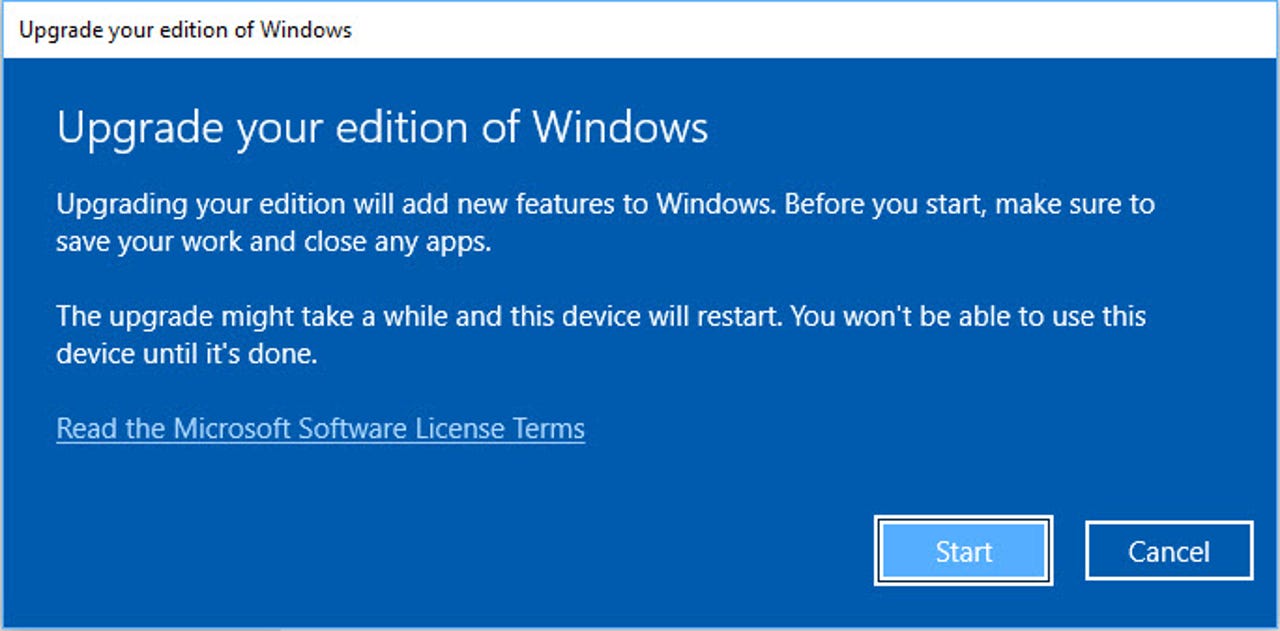
Once the System Upgrade complete, Return to Settings > System > Activation to confirm that you are upgraded to Windows 11 Pro.
Purchasing a Pro License from the Microsoft Store
- Open Settings:
- Press
Win + Ito open the Settings app.
- Press
- Go to Update & Security:
- Click on
Update & Security.
- Click on
- Activation:
- Click on
Activationin the left-hand menu.
- Click on
- Go to the Microsoft Store:
- Under
Upgrade your edition of Windows, click onGo to the Store.
- Under
- Purchase Pro:
- You will be redirected to the Microsoft Store. Purchase the upgrade to Windows 10 Pro and follow the prompts to complete the process.
Using Media Creation Tool (For a Clean Install)
- Download the Media Creation Tool:
- Go to the Windows 10 download page and download the Media Creation Tool.
- Create Installation Media:
- Use the tool to create a USB installation media.
- Install Windows 10 Pro:
- Boot from the USB drive and follow the installation prompts. Select Windows 10 Pro during the installation process.
- Activation:
- Enter your Windows 10 Pro product key when prompted, or activate it later in the Settings app under
Activation.
- Enter your Windows 10 Pro product key when prompted, or activate it later in the Settings app under
Using Volume Licensing (For Enterprise)
- Get a Volume License:
- If you have access to a volume license, obtain the appropriate Windows 10 Pro volume license key.
- Upgrade via Command Prompt:
- Open Command Prompt as an administrator and enter the following command:Copy code:- slmgr /ipk <Your-Pro-Volume-License-Key>
- Then, activate it with:Copy code:- slmgr /ato
- Open Command Prompt as an administrator and enter the following command:
Make sure to back up your important data before performing an upgrade or clean install to pro
For more information, please see the following link.
For the fresh istallation of Windows 11 Pro, please see the below link.
Related Articles
"D3D11" GPU Error in Windows 11/10
The D3D11 error, which often leads to display crashes, typically occurs when the GPU driver crashes. This issue can arise during the installation of GPU-related drivers or while using software or applications that heavily utilize the GPU. D3D11 Error ...Video Wall Solution for Windows
Issue Windows PCs at the experience center stops playing videos after a reboot or if a customer accesses the demo through remote desktop. Videos should autoplay on loop regardless of current state. Solution This issue can be solved by setting the ...Checking Memory Details & RAM Diagnosis with Windows Memory Diagnostic Tool
Checking Memory Details & RAM Diagnosis With Windows Diagnosing Tool Checking Memory Details in Windows About RAM : RAM (Random Access Memory) is the internal memory of the CPU for storing data, program, and program result. It is a read/write memory ...Installing Drivers and Activating Windows using Audit Mode
Installing Drivers and Activating Windows Through OOBE or Audit Mode It is important to let customers customize their Windows first boot settings (OOBE settings). The entire installation process for a custom build must be carried out manually, for ...How to enter OOBE mode from user mode in windows PC
Entering Out-Of-Box Experience (OOBE) mode from user mode on a PC typically involves using a command prompt with administrative privileges. Here’s how you can do this on a Windows PC. There are two ways to enter OOBE Using Run Dialog Open Run Dialog: ...
Recent Articles
Troubleshooting NVSM Alert NV-CPU-XX – Unrecoverable CPU Internal Error
Purpose This document provides a general troubleshooting procedure for the NVIDIA System Management (NVSM) alert NV-CPU-XX, which indicates that a CPU has reported an internal error. The article outlines how to verify whether the alert represents an ...PCIe Gen5 Switch Board Replacement
1. Objective The objective of this Method of Procedure (MOP) is to safely replace the defective PCIe Gen5 Switch Board in the Supermicro server while minimizing system downtime and ensuring all PCIe devices, including GPUs, NICs, NVMe drives, and ...Local Boot Support for DGX H200 with BCM 11
Overview This Knowledge Base (KB) article explains the supported method for deploying and managing a DGX H200 system using Bright Cluster Manager (BCM) 11 while booting the operating system from the node's local NVMe storage. To be managed by BCM, ...Execution of NVIDIA Field Diagnostic (FD) Tool and Collection of Diagnostic Logs, and troubleshooting of GPU(s) not detected
1. Objective To provide a standardized procedure for executing the NVIDIA Field Diagnostic (FD) tool, verifying GPU status, collecting the required diagnostic logs, and documenting the findings for further analysis. 2. Scope This procedure applies to ...Fiber Optic Bend Radius Measurement and Compliance
1. Purpose This article outlines the procedure for verifying that installed fiber optic cables comply with minimum bend radius requirements. Proper verification prevents signal degradation, ensures optimal optical performance, and protects the ...
Popular Articles
CP Plus Camera and NVR Configuration
NVR Configuration The CP Plus Pro Series of NVRs have been meticulously designed for providing you with upgraded performance and higher recording quality in your IP video surveillance solution. The robust processor that has been inculcated in this ...Kerberos Authentication – Overview
What is Kerberos? Kerberos is a secure authentication method used in our Active Directory (AD) environment (mbuzztech.com). It allows users to: Access multiple systems without re-entering passwords (Single Sign-On – SSO) Log in once Where We Use It ...How to Remove and Reinstall NVIDIA Drivers on Ubuntu
This article provides step by step guide to completely remove existing NVIDIA drivers and reinstall specific version of the NVIDIA driver on the Ubuntu system Prerequisites Administrative (sudo) access to the Ubuntu system. Internet access to ...Personal Computers and Servers - Classification and Point of Contact
We can classify the computers that MBUZZ handles based on their form-factor as below: Tower Workstations, Desktops, Gaming PCs and SFF (Small form factor) PCs fall under this category. These are computers people would use on a desk and rarely move. ...M.2 SSD Tier List
The sequential read and write speeds, which are usually the most advertised number, are not a proper benchmark of real-world performance or the quality of an SSD. This article categorizes and tiers SSDs based on factors like the type of NAND flash, ...