KB 112348 - PC Doctor Service Center Multi-Purpose Testing Tool
Service Center Multi-Purpose USB Device
PC Doctor Service Center provides four excellent diagnostic environments on a single USB key, giving technicians quick access to Windows, Chrome OS, Bootable Diagnostics with Intel-based Mac and Android support, and Windows. Diagnostic sessions from all four testing environments can be easily combined on a USB key to provide your customer with an accurate picture of the testing. The Multipurpose USB Device stores configuration files, customizable reports in multiple languages, system snapshots, customized links, drive erase reports, and other useful information.
Key Features
- Full information about the PC and the devices is provided.
- The ability to test individual components on a computer and retrieve testing data.
- It is simple to use.
- The multipurpose USB device saves session data, configuration files, customizable reports, system snapshots, customized links, and other data.
- The Direct System InformationTM architecture collects data directly from devices, avoiding the use of drivers when possible.
- On PC, Mac, or ChromeOS systems, run directly from the DVD or the multipurpose USB device with no installation.
- Examine Windows BSODs for the offending device driver.
- ability to run under Windows 7–11, Windows Server 2012 R2, the offline Bootable Diagnostics operating system, Android 6–12, ChromeOS, and Intel-based Macs.
- Bootable Diagnostics supports testing UEFI-based systems, including 64-bit UEFI secure boot systems.
- When testing, sessions automatically save system information, test results, and system snapshots to a USB key—or use Service Center Remote to store reports in the cloud
How To Use
- Connect the PCDoctor USB Key to the USB port on your computer and run the PC Doctor setup exe from the folder.
- Tick the "Agree to the Terms and Conditions" box in the setup window to begin the installation process. Also, this will allow us to test the computer without installing test software. To test without installation, select the "RUN From USB" option.
- The PCDoctor Testing tool Window will be opened automatically when the installation is finished.
- Fill in the required field of the job description and load the session from this window. after filling in the job info click on
- Create the job details and start the Testing.
Ticket ID - Service TAG of the Job
Session Name - Customer Name
Device ID - Device Serial Number - We can see some pre-loaded tests after entering the testing window.
TESTS
- System Test
- Burnin Test
- Hard Drive Test
- Extended Hard Drive Test
- Memory Test
- System test- This test will run diagnostics and tests, including stress tests, on key components connected to the PC and the PC motherboard's functionality. (Motherboard, CPU, Memory, GPU, Storage)
- Burn-In Test- Conduct tests in depth( Stress and Burn-in) on multiple key components simultaneously. ( CPU, Memory, GPU, Storage)
- Hard Drive Tests-Tests the storage devices deeply for the error with multiple tests
- Memory Test -tests the memory modules with multiple tests
- Also, from the Diagnostics tab, we can run the required component tests. For example, in some cases, we only need to test the GPU, so we can run the GPU Tests individually.
Accessing Generated Test Report From Device Storage
Once the desired tests are complete, PC Doctor saves the test reports and system information for every job to the data drive. Navigate to the files on PC Doctor, open the data files, and under the sessions folder, you'll see folders with job names; from the jobs folder, you'll get all the information and testing reports.
PC Doctor Bootable Diagnostics
The PC Doctor Service Center provides bootable diagnostics. Bootable Diagnostics can test UEFI-based systems, including 64-bit UEFI secure boot systems. This will allow us to test a non-bootable system and determine the source of the hardware failure.
Booting From PC Doctor
Connect the PCDoctor USB Key to the USB port on your computer and select PCDoctor as the First boot device from bios or Boot Menu.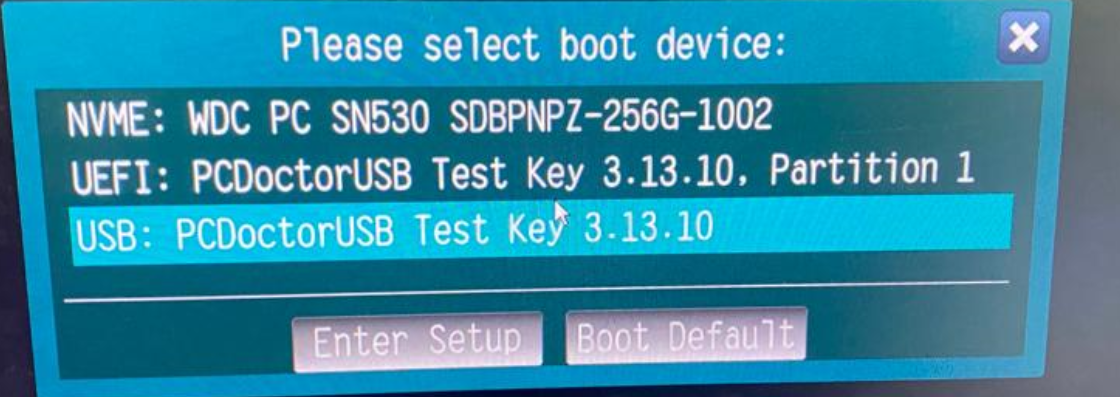
To boot, press the enter key. From the next window, select the service center Bootable Diagnostics option and press enter to begin.
From the next window select the test environment you wish to utilize on this machine.

Automated Testing (Bootable Diagnostics Only) will load the test environment and begin running a preconfigured diagnostic test script without the need for further user interaction.
Video Fallback should only be used if you are experiencing issues related to the other diagnostic options.
After you make your selection, the system will boot into the test window and fill out the job details as described in the previous steps.
Once the tests are completed, The test reports can be found in the data folder of PC Doctor.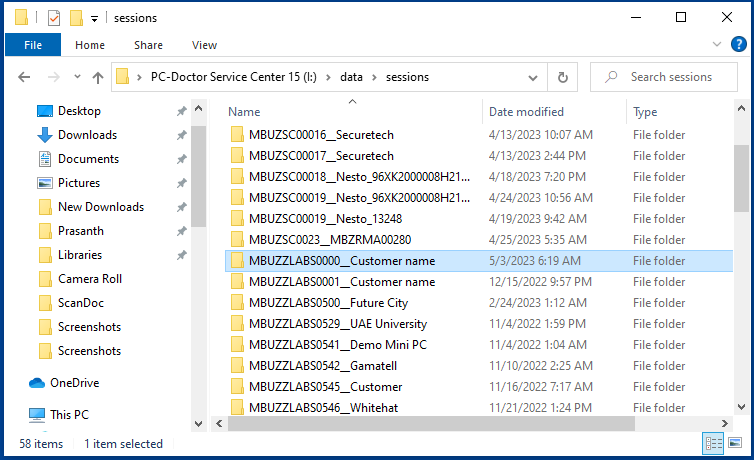
Final Overview
- PC Doctor is the ideal testing tool for service facilities that manage hardware-level repairs and troubleshooting.
- Benefits:
- No installation is necessary. The test can be done directly from the PCDoctor USB stick.
- Individual tests can be configured
- Reports can be customized with the engineer's name and the company logo and details
- PCDoctor USB stick, which contains comprehensive diagnostic capabilities in a single program.
- The PCdoctor Bootable option enables complete Diagnosing flexibility on a PC.