KB 591186 - Creating a multi-OS live USB with Ventoy
Instead of having separate USBs for Windows, Linux and their variants, Ventoy allows you to assign a single drive capable of booting to any OS you choose. After setup, you can drag-and-drop iso files into the external drive and it will show up as an option in Ventoy.
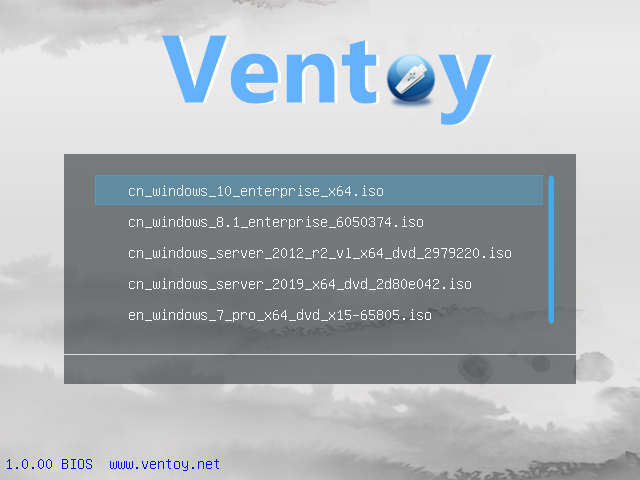
With Ventoy, you don't need tools like rufus or etcher to make an iso bootable. Since it shows up as a normal external drive when you plug it into a PC you can use it as more than just a boot drive.

You will need administrator or super-user privileges to set up Ventoy
For this example. we will be installing Ventoy through Windows, For Linux and others see: Getting started: Ventoy
Head over to the releases section of Ventoy's official GitHub repository: Releases · ventoy/Ventoy (github.com)
Download the latest windows zip installation package, like ventoy-x.x.xx-windows.zip, and decompress it.
Run
Ventoy2Disk.exe, select the device and click Install or Update button
Notes:
if Ventoy2Disk.exe always fail, you can use Ventoy LiveCD, See: livecd . Ventoy
Ventoy can be installed on USB drive or local disk. To prevent misoperation, Ventoy2Disk.exe only lists USB drives by default.
You can toggle the Show all devices option then all the disks will be listed. But at this time, you must be very careful to not choose the wrong disk.
You can toggle the Show all devices option then all the disks will be listed. But at this time, you must be very careful to not choose the wrong disk.
After install, you can manually reformat the Ventoy partition with exFAT/FAT32/NTFS/UDF/XFS/Ext2/3/4